
Steam Game Recording
NEWRecommended - Easiest to setup!
Steam now has a built-in game recording feature! It's the easiest way to capture your gameplay with just a few clicks.
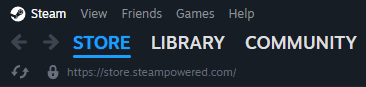
Open Steam and click "Steam" in the top left corner
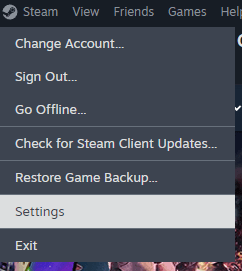
Click "Settings" from the dropdown menu
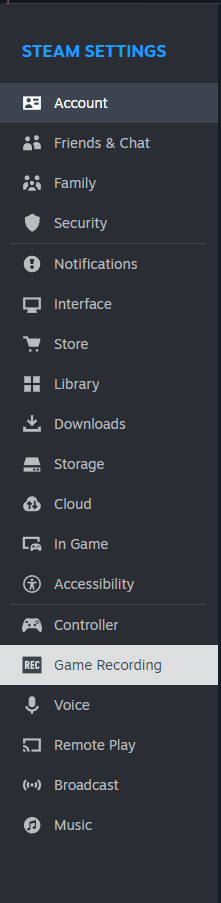
Click "Game Recording" in the left sidebar
Select "Record in Background" - That's it!
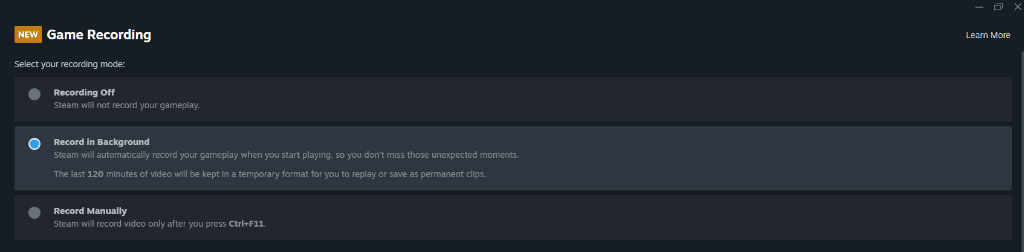
That's it! Steam will now automatically record your gameplay. The last 120 minutes will be saved for you to clip and share.
How to save a clip:
- • Press Shift + Tab to open Steam Overlay
- • Click the Recording button
- • Select the clip you want to save
NVIDIA ShadowPlay
ShadowPlay is built into the NVIDIA App (formerly GeForce Experience) and uses your GPU for minimal performance impact.
Setup Steps:
- Download and install the NVIDIA App from the link below
- Open the NVIDIA App and sign in with your NVIDIA account
- Click the Settings (gear icon) in the top right
- Go to Features and enable In-Game Overlay
- Press Alt + Z in-game to open the overlay
- Click Instant Replay or Record to start capturing
- Press Alt + F10 to save the last 5 minutes (Instant Replay)
- Press Alt + F9 to start/stop manual recording
AMD ReLive
AMD ReLive is included with AMD Adrenalin drivers and offers low-impact game recording.
Setup Steps:
- Download and install AMD Software: Adrenalin Edition from the link below
- Open AMD Software and go to Settings (gear icon)
- Navigate to Recording & Streaming
- Enable Record Desktop and Instant Replay
- Set your preferred recording quality and save location
- Press Ctrl + Shift + S to save Instant Replay
- Press Ctrl + Shift + R to start/stop manual recording
OBS Studio
OBS Studio is a free, open-source recording software that works with any GPU and offers advanced customization.
Setup Steps:
- Download and install OBS Studio from the link below
- Run the Auto-Configuration Wizard when prompted (select "Optimize for recording")
- In the Sources panel, click + and select Game Capture
- Set Mode to Capture specific window and select DayZ
- Go to Settings → Output and set your recording path and quality
- For best quality, use NVENC (NVIDIA) or AMF (AMD) encoder
- Click Start Recording or use the hotkey (default: none, set in Settings → Hotkeys)
Pro Tip: For Instant Replay in OBS, go to Settings → Output → Replay Buffer, enable it, and set the buffer time (e.g., 60 seconds). Use the hotkey to save clips.
Recommended Settings for DayZ
- Resolution: 1080p (1920x1080) for good balance of quality and file size
- Frame Rate: 60 FPS for smooth playback
- Bitrate: 20-50 Mbps for high quality, 10-20 Mbps for smaller files
- Encoder: Use hardware encoder (NVENC/AMF) for minimal performance impact
- Instant Replay: Set to 2-5 minutes for capturing highlights